juil. 05, 2013
This post is the result of a sort of challenge. The objective is to create an architecture to generate, manage and deliver HTTP streaming videos using free and/or open-source tools and/or applications. It need to answer to many questions : tools must be open source or free; reliability of the platform and the ability to scale up quickly. The architecture can be split in two parts : the content preparation and the delivery. I will expose an overview for each part of the architecture. Then I will list differents tools you can use. To finish, I will give you in details the architecture I will choose to deploy. But to realize this, few or some developments can be required, the language you will use, will be your choice. The operating system will be on Linux.
Content preparation
Here is the part to prepare the content. It will be separate in 3 differents items, I call them services :
- Manager this service will orchestrate all the tasks. In this part, I choose the self-development but another option is possible (see below).
- Bus the service bus will deliver all messages between others services
- Worker each worker will be in charge of one specific task : encode, upload, download, package.
All of these is exposed in this figure :
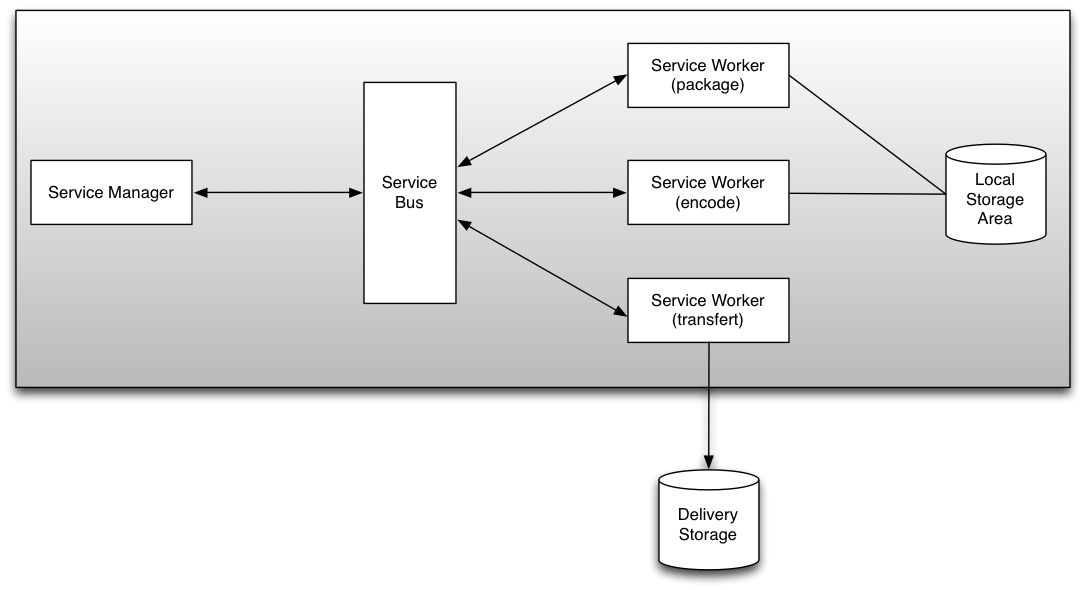
The generated assets are transfered in the delivery zone storage.
Service : Manager
Here is the intelligence of the system. You have two choice :
- create your own system. In this case, the manager need some developments, you can choose the language you want : Python, PHP, NodeJS, Java, Perl, etc...
- using a system already developed. I think about Kaltura platform for example. This option need some integration and learning time if you want to use it.
I recommend to associate your code to a database. The database will save the metadata of your video assets and some configurations datas.
Service : Bus
The service bus will use the concept of Message queue. That is very interesting because it helps to manage more easily the communication between each application : you send the message and the library or the system make the rest. There are many tools in the open source world :
For each message queue solutions, you will find connectors for separates languages (C, C++, PHP, Python, Perl, ...). Depends on the message queue solution you choose, you need to make more or less developments.
Service : Worker
Workers services are here to make specific tasks :
- encode : this service is based on the most famous open source tools in the encoding's world : ffmpeg and its differents libraries (libfaac, libx264, ...). But you can use mencoder too.
- package : the objective is not to encode the video asset, but to change the format. Some tools are available :
- MP4Box : to manage MP4 files or MPEG-DASH
- f4fpackager : to generate HDS, you will need to deploy the HDS module for Apache in the delivery platform
- mediasegmenter : to generate HLS
- FLV2DTSC : to generate DTSC if you want to use MistServer (a solution I told in previous articles).
- transferts : at the end of a process, you will need to transfert the asset to a destination. Transfert workers is able to use some protocols : FTP, SCP, HTTP, etc... So you can push the content to the delivery storage.
All of this services can be in the same physical server. If you have more assets to manage and generate, it is possible very easily to scale up. Workers can be deploy on dedicated server and the bus service is here to manage the network. You can add another service manager to add redundance. Thoses updates will have a impact on the reliability of the platform.
Here is one solution which include the most part of those precepts : Transcodem. You can fork this project on GitHub too.
Delivery
Ok, now your assets are ready to deliver and are in the delivery storage. In our architecture, we want to stream content based on HTTP protocol (HDS, HLS, Smooth Streaming). You can start with one physical server, but all tools and the architecture I expose can scale up easily to many physicals servers. We have many tools to help us :
And if your platform will support a high load, you can use proxy cache solution like Varnish. I gave in a previous post a solution to deliver content with Varnish and MistServer.
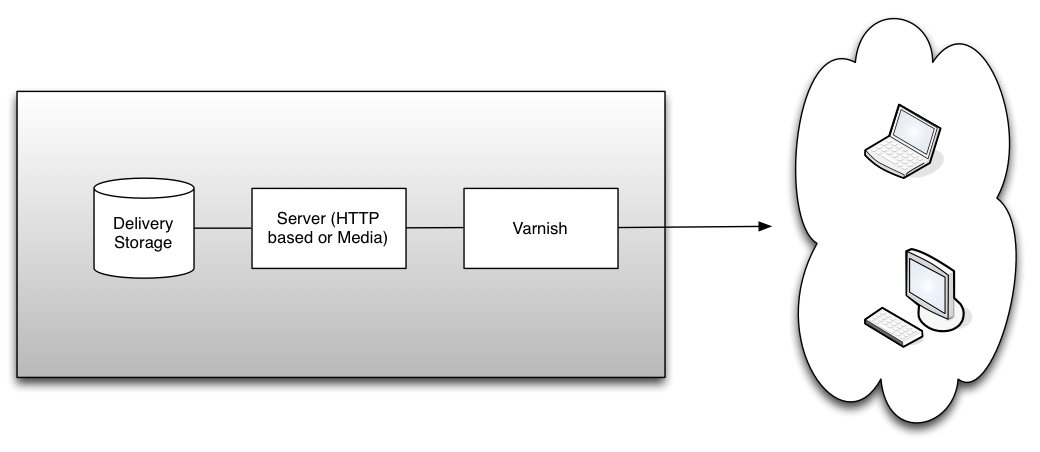
To finish, you can split the two part or merge them in one infrastructure. I am opened to talk about this architecture and which tools we can use to deploy it.
juil. 04, 2013
 Everybody knows ffmpeg the command line encoding tool but do you know ffserver ? ffserver is a multimedia streaming server for live broadcasts. With it, you can stream over HTTP, RTP and RSTP.
Quick overview
The concept is to use ffmpeg to push content to one server. This server will transcode streams and deliver to the end-users.
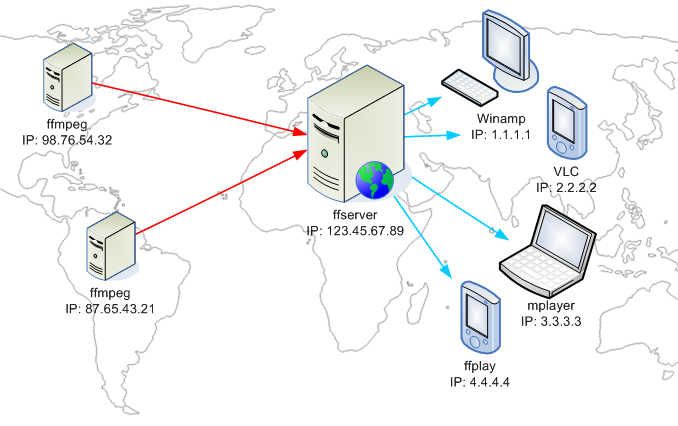
Input streams are called feed and for each feed you can have multiple output stream.
We can manage ffserver via a configuration file. The syntax is close to the one used for Apache server. You can find a example here. And there are more informations in the ffserver wiki.
We will see two examples on how to deliver content via a ffserver. There will be a FLV and a WebM stream.
Stream FLV
In this example, we will have one input stream and two output : one in FLV and one WebM.
Here are the general configuration settings
[code language="text"]
Port 8090
BindAddress 0.0.0.0
MaxHTTPConnections 2000
MaxClients 1000
MaxBandwidth 1000
CustomLog -
[/code]
We define a status page.
[code language="text"]
\<Stream stat.html>
Format status
ACL allow localhost
ACL allow 192.168.0.0 192.168.255.255
\</Stream>
[/code]
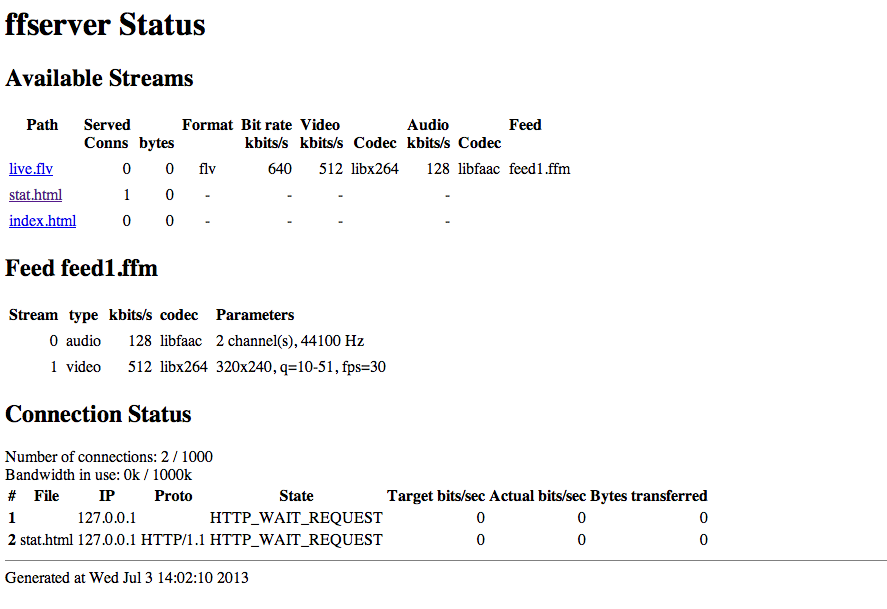
This page will help us to monitor the server. This page is call with this url : http://localhost:8090/stat.html and you will get this page :
Now we set up the feed : storage area, max size and allowed referrers. Remember, feeds are the input of the ffserver.
[code language="text"]
\<Feed feed1.ffm>
File /tmp/feed1.ffm
FileMaxSize 1G
ACL allow 127.0.0.1
\</Feed>
[/code]
Ok, our configuration file have now a input feed. Now, we will add the first output : the FLV one. The video will be encoded in H264 for video and AAC for audio. This part is divided in 3 part :
- general settings : which feed is used and output format
- settings for video
- settings for audio
[code language="text"]
\<Stream live.flv>
Format flv
Feed feed1.ffm
VideoCodec libx264
VideoFrameRate 30
VideoBitRate 800
VideoSize 720x576
AVOptionVideo crf 23
AVOptionVideo preset medium
AVOptionVideo me_range 16
AVOptionVideo qdiff 4
AVOptionVideo qmin 10
AVOptionVideo qmax 51
AVOptionVideo flags +global_header
AudioCodec aac
Strict -2
AudioBitRate 128
AudioChannels 2
AudioSampleRate 44100
AVOptionAudio flags +global_header
\</Stream>
[/code]
The first part of our server is now configured and saved in a ffserver.conf file. We can test it. Launch the server with this command line :
[code language="bash"]ffserver -f ffserver.conf[/code]
You will have this output :
[code language="bash"] ffserver version 1.2.1 Copyright (c) 2000-2013 the FFmpeg developers
built on Jun 24 2013 10:41:49 with Apple clang version 4.1 (tags/Apple/clang-421.11.65) (based on LLVM 3.1svn)
configuration: --prefix=/opt/local --enable-swscale --enable-avfilter --enable-libmp3lame --enable-libvorbis --enable-libopus --enable-libtheora --enable-libschroedinger --enable-libopenjpeg --enable-libmodplug --enable-libvpx --enable-libspeex --enable-libass --enable-libbluray --enable-gnutls --enable-libfreetype --mandir=/opt/local/share/man --enable-shared --enable-pthreads --cc=/usr/bin/clang --arch=x86_64 --enable-yasm --enable-gpl --enable-postproc --enable-libx264 --enable-libxvid --enable-nonfree --enable-libfaac
libavutil 52. 18.100 / 52. 18.100
libavcodec 54. 92.100 / 54. 92.100
libavformat 54. 63.104 / 54. 63.104
libavdevice 54. 3.103 / 54. 3.103
libavfilter 3. 42.103 / 3. 42.103
libswscale 2. 2.100 / 2. 2.100
libswresample 0. 17.102 / 0. 17.102
libpostproc 52. 2.100 / 52. 2.100
Wed Jul 3 14:02:01 2013 FFserver started.
[/code]
Your server is now up and running. We can push our first movie, in my case, I use the Sintel Movie trailer. The ffmpeg command line read the video and push it to the feed we configured above.
[code language="bash"][/code]ffmpeg -i sintel.mp4 http://localhost:8090/feed1.ffm[/code]
Now you can launch your preferred player (in my case VLC) and try to stream the content : http://localhost:8090/live.flv ;-)
Stream WebM
Ok we have now one FLV output stream. We will replace FLV stream by one new output : WebM (with Vorbis and VP6). We will re-used the ffserver.conf file and put this part :
[code language="text"]
\<Stream live.webm>
Feed feed1.ffm
Format webm
AudioCodec vorbis
AudioBitRate 64
VideoCodec libvpx
VideoSize 720x576
VideoFrameRate 25
AVOptionVideo flags +global_header
AVOptionVideo cpu-used 0
AVOptionVideo qmin 10
AVOptionVideo qmax 42
AVOptionVideo quality good
AVOptionAudio flags +global_header
PreRoll 15
StartSendOnKey
VideoBitRate 400
\</Stream>
[/code]
Restart the server and push again the content. You can test the movie on Chrome or VLC with this url : http://localhost:8090/live.webm
Note: with WebM, you can create a kind of live stream if you loop on different ffmpeg command line.
To conclude, we know ffmpeg as one of the most useful free encoder. Now, ffserver is a very interesting tool and deserve more time to test the different possibility of it.
Have fun with it ! ;-)
avril 11, 2013
 I made last year a post to introduce a new streaming server : MistServer. From this article, I follow all the updates made by the team. The DDVTech team released the server in version 1.1 the 31th March. The changelog is available too.
Some important formats were updated in this new version : HLS and Smooth Streaming, HTTP Progressive. They added too MPEG TS protocol. The interface get some updates too for a better management. And the most important, the server gets many improvements.
The interface
The main update on the interface is for the protocol section. The Limits are now only available in the LTS (you need to buy it, but it's only 299€).
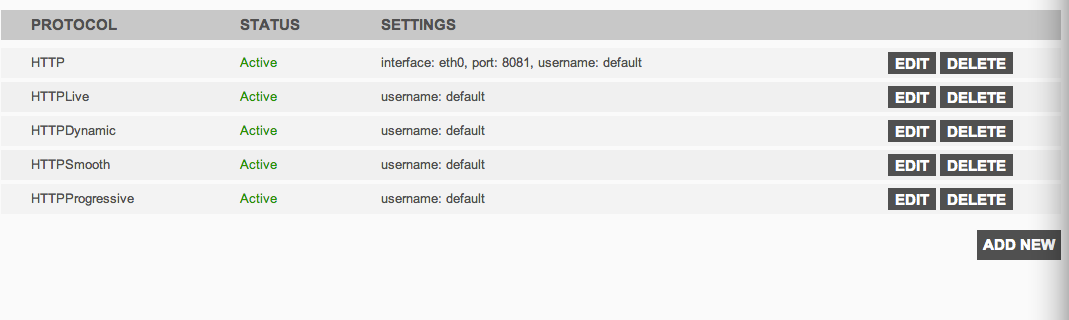
The list of the protocols available is more cleanest.
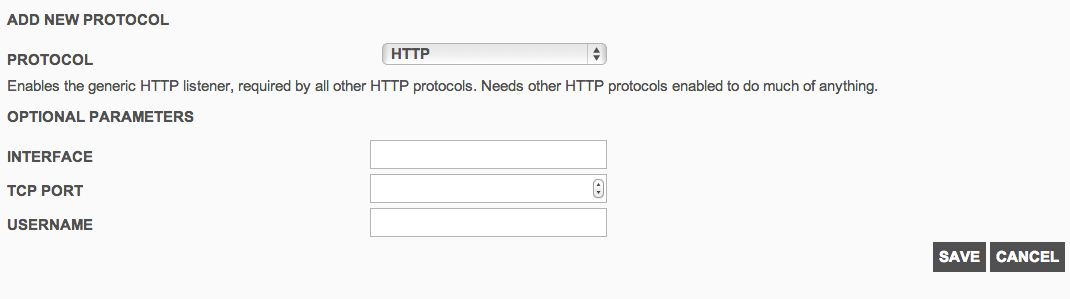
To add or edit a protocol, you will get a specific form. You can choose HTTP or HTTP based protocol, RTMP and TS. We will see the different protocols below.
 Formats supported
In this version, new formats are now supported or the performance to deliver was improved. MistServer interface is very easy to use and manage if you want to make a try. For the HTTP based protocol, you need to create first a HTTP protocol on a specific interface and port.
HTTP Dynamic Streaming
This format was already available in previous version, but the template of the url changed :
http://[ip_address]:[port]/dynamic/[stream_name]/manifest.f4m
You can test the content with an OSMF player.
HTTP Smooth Streaming
The Microsoft's protocol works now well with the last version. I tested it 3 months ago but the video doesn't stream well (lags, buffering, etc...). It's now fixed.
http://[ip_address]:[port]/smooth/[stream_name].ism/Manifest
Here is a distant Smooth player
HTTP Live Streaming
This format is used by the iOS devices (iPhone / iPad / iPod) and by some Android devices.
http://[ip_address]:[port]/hls/[stream_name]/index.m3u8
You can test your content with an Quicktime player or a VLC player.
This format is currently in progress. The dev team is improving the performance of this format.
HTTP Progressive
With MistServer, you can deliver too the content via HTTP Progressive download. You just need to call the movie as a FLV file or MP3 file (for audio only).
http://[ip_address]:[port]/[stream_name].flv
http://[ip_address]:[port]/[stream_name].mp3
You can read flv with a Flash based player. Or, I read a specific trick (on Mist mailing list) for Android, you just make a \<a> link pointing to the flv. Android detects MimeType and suggests one of the player.
RTMP
RTMP is a format provided by Adobe. You can read RTMP stream with some players.
In MistServer interface, add a new protocol RTMP. By default, the port is 1935.
rtmp://[server]:[port]/*/[streamname]
TS
As the CTO of DDVTech told me, TS is a raw stream. You can deliver a single stream once you are connected to. In the interface, you need to provide which stream you want to deliver.
You can try the stream with VLC for example.
To conclude, this version makes available some good functionalities and the team help us quickly on the different communication channels (GoogleGroup, IRC). To avoid the load, we can make some optimization in the architecture based on Mist. We will see it in a next post. Have fun when you test it !
Update 18/04/2013 : DDVTech published a version 1.1.1 with some bug fixes (changelog).
déc. 10, 2012
Mistserver is a open-source multimedia streaming server developed by DDVTech a company based in Netherlands. This server will support some technologies : HLS, HDS, Smooth Streaming, RTMP, ...
For the moment, HDS, RTMP and progressive download are available. You can push too livestream via RMTP. The company have two others solutions : MistSteward, MistCenter.
DDVTech positions his solution in a competitive market with some actors : Adobe Media Server, Wowza, Red5, Apache, ...
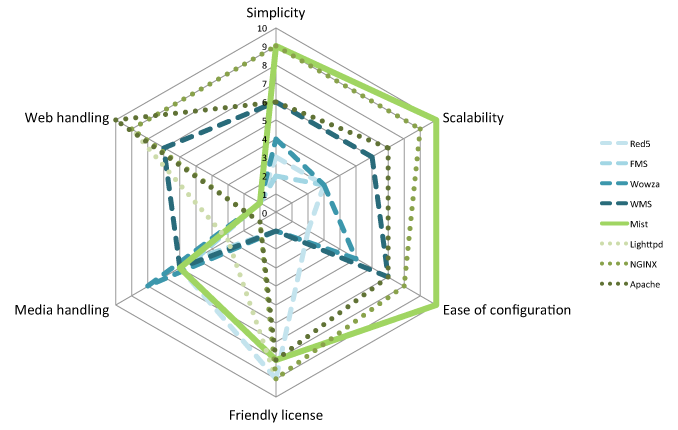
The solution is open-source so the source code is available on GitHub.
The main idea, in the server architecture, is to have a specific process for each viewer. The main concept design is modularity via some Server API.
For this first quick overview, I use a Virtual Machine based on Ubuntu 64bits. In the download section of the site, you have some statics binaries. In my case, I compile the library and the server. You need to install some packages before, if they are not already installed :
apt-get install pkg-config openssl-dev g++
Then, just follow the QuickStart page. When it's finished, have a look on administration home page.
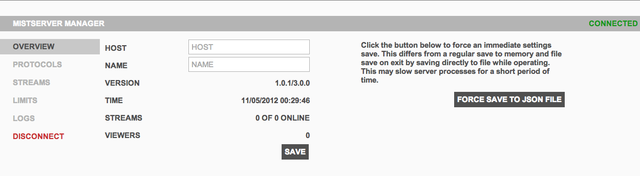 Ok, now I will stream a VoD content. To do that, you need to use a FLV file (named here movie.flv). Please take care when you use the commandline MistFLV2DTSC : you need to have the \< > in your command. The video is piped in the MistFLV2DTSC and then output in the dtsc file.
MistFLV2DTSC < movie.flv > movie.dtsc
MistDTSCFix movie.dtsc
Now, add your content in the administration portal. Go in Protocols and add a new one. You can add 2 types of protocols : HTTP or RTMP and associate it to a port. The interface is the network interface you want to use.
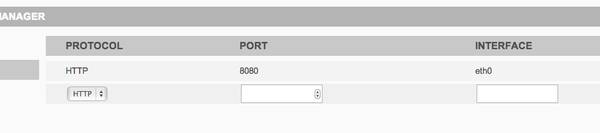
Ok, so your server is set-up to stream file on HTTP and port 8080. Without adding one protocol, you can't be able to stream a content.
Now, add our video (the movie.flv file). Go in Stream, fill a name and a source (the location of the file in the server). 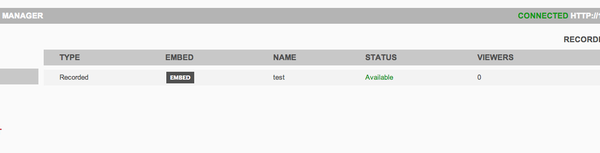 You will see in the server log (available via the Administration interface or via shell)
After few moment, the status updates to Available. You can now preview the content, click on Embed then Preview.
To finish, you can access to your content via differents url for the differents protocols :
- for FLV : http://server_address:port/movie.flv
- for F4m : http://server_address:port/movie/manifest.f4m
Next step is to set-up a live stream and playing with the server, but this is for another post ;-)
Update 12th April 2013 : Release of version 1.1