 To begin this new year, I make this post on a subject which can introduce misunderstandings. Previously, Adobe named it streaming server : Flash Media Server (aka FMS) v4.5. In october 2012, Adobe release a new version and recalled the server: Adobe Media Server (aka AMS) v5.0.1. Some acronym used in FMS are the same in AMS, but this is not the same "products" (e.g. PHLS). In this post, I will give some input on live streaming format and especially about security applied on.
HTTP Dynamic Streaming (HDS)
Adobe Media Server is abled to stream (and so repack) 3 HDS formats :
HTTP Dynamic Streaming (HDS)
This is the common HDS format created by Adobe. A HDS content contains 1 XML based manifest file (.f4m), 1 index file (.f4x) and 1 file contained the fragments (.f4f).
Protected HTTP Dynamic Streaming (PHDS)
PHDS adds encryption on the content without using a DRM system like Adobe Access. The content is only encrypted, there is no right management.
To improve your security, you can use too SWF verification. One or more players are declared in a whitelist on the server and only this players can stream contents.
HTTP Dynamic Streaming associate to Adobe Access
To apply some rights on your content, you apply some rules via a DRM system. The Adobe Access license server is optimized to use with HDS. You need to declare on the server some informations from the license server and which DRM policy you want to use.
HTTP Live Streaming (HLS)
In a previous post, I talked on the Flash Media Server 4.5 setup, to be more precise on PHLS setup. There is a big difference, so here, forget the formats in FMS ;-) Adobe Media Server is abled to stream 4 HLS formats. The first is the common HLS and 3 others.
Vanilla
In AMS, Vanilla is the HLS format with an AES-128 encryption applied on the content. You can stream the content with all Quicktime based players (like the player on iOS devices).
Protected HTTP Live Streaming (PHLS)
Here is the main difference between PHLS on FMS and PHLS in AMS. In FMS, PHLS is the HLS with AES. In AMS, PHLS is an encryption on your content without using a DRM system.
HTTP Live Streaming associate to Adobe Access
Like HDS with Adobe Access, you can apply a full DRM solution on HLS. Please notice, this functionality is only available with Adobe Access v4.
For the two last formats, the content can only be streamed by a specific player provided by Adobe.
To finish, when you read the documentation on Adobe developer website, be careful you read the doc related to the good version of the streaming server. Some link in AMS 5.0 reported to the FMS 4.5 ;-)

Here is a How to, the objective is to demonstrate the setup of a PHLS live stream. PHLS means Protected HLS : the custom format of HLS by Adobe. The protection is realized with a AES-128 encryption on the content. To make this configuration, you need a streaming server which will push content via RTMP. Some live transcoders are available from ElementalLive to ffmpeg. And you need too a Adobe Media Server 4.5 installed to complete this how to. All I write in this post is available via the FMS documentation.
Setup HLS live stream
First, we will push not one, but multiple RTMP streams. Remember, HLS is an adaptive bit rate protocol, so you need to use some bitrate as input. FMS will rewrap the content to the good output. In this case, I will push 4 stream at 200, 400, 600 and 800 kbits/s.
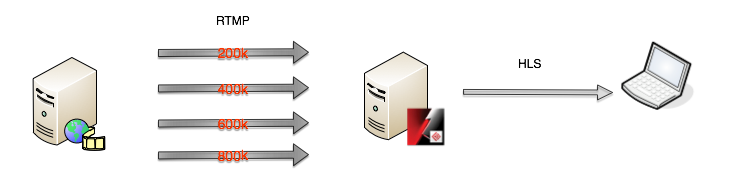
But where do we push the content ? Here is the template url :
rtmp://ams_address/livepkgr/stream_name?adbe-live-event=event_name
Apply this template with the previous data (192.168.0.2 is the address of the FMS), we will have :
- rtmp://192.168.0.2/livepkgr/200k?adbe-live-event=mylive
- rtmp://192.168.0.2/livepkgr/400k?adbe-live-event=mylive
- rtmp://192.168.0.2/livepkgr/600k?adbe-live-event=mylive
- rtmp://192.168.0.2/livepkgr/800k?adbe-live-event=mylive
Ok, now we will check if the stream are correctly pushed. Have a look on the FMS administration and go to Manage Server -> Select the server -> Applications
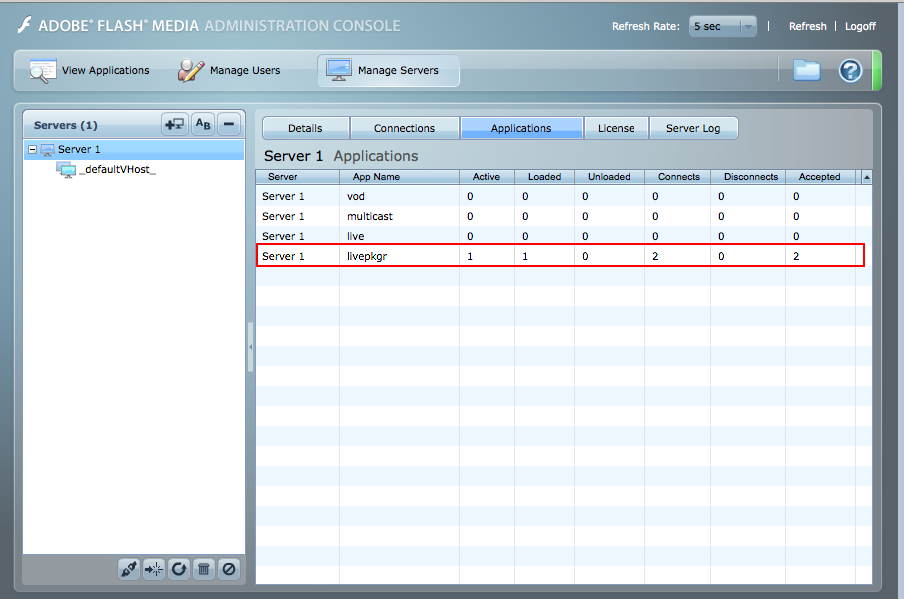
Another solution, to check the content is correctly pushed, is to connect to the server via ssh, in my case (I used Linux), and check if there is some files in /mnt/applications/livepkgr/events/_definst_/eventname* * like this kind of files :
MTQ1OTkwMzc5OQ=.stream or NDE3MDY5NTk0OQ=.stream**. It can be useful to check the presence of this files in order to manage your live stream platform based on FMS.
Then, and here is the magic of FMS :-), you can watch you content... to be more precise, you can stream each bitrate separately with the player:
- http://192.168.0.2/hls-live/livepkgr/_definst_/mylive/200k.m3u8
- http://192.168.0.2/hls-live/livepkgr/_definst_/mylive/400k.m3u8
- http://192.168.0.2/hls-live/livepkgr/_definst_/mylive/600k.m3u8
- http://192.168.0.2/hls-live/livepkgr/_definst_/mylive/800k.m3u8
Try the differents URLs in iOS device, Quicktime or VLC and you can be able to view the live content. We have some single bit rate stream and at the beginning of this post, I wanted an adaptive bit rate live stream .
So finally, we create a m3u8 manifest file which contains our different sub-streams (the manifest for each bit rate).
[bash]
#EXTM3U
#EXT-X-STREAM-INF:PROGRAM-ID=1,BANDWIDTH=200000
http://192.168.0.2/hls-live/livepkgr/_definst_/mylive/200k.m3u8
#EXT-X-STREAM-INF:PROGRAM-ID=1,BANDWIDTH=400000
http://192.168.0.2/hls-live/livepkgr/_definst_/mylive/400k.m3u8
#EXT-X-STREAM-INF:PROGRAM-ID=1,BANDWIDTH=600000
http://192.168.0.2/hls-live/livepkgr/_definst_/mylive/600k.m3u8
#EXT-X-STREAM-INF:PROGRAM-ID=1,BANDWIDTH=800000
http://192.168.0.2/hls-live/livepkgr/_definst_/mylive/800k.m3u8
[/bash]
Put this file at the root folder of FMS and try again with the player (for example the address will be at : http://192.168.0.2/manifest.m3u8). You can view the stream adapt to the band-with available. ;-)
Add encryption and setup PHLS live stream
We made a big part of the job. We have HLS live stream which is adaptive to the bandwidth. The question is how to encrypt the content and this operation will be made by Adobe Flash Media Server. To do that, we need to change configuration files. When you change the configuration, you need to restart FMS :
rootinstall/server restart
The encryption is possible at 3 different levels :
An application is composed by different events. The configuration will be applied to every event in application. The file is located :
rootinstall/applications/application_name/Application.xml
At event level, the configuration files are located in:
rootinstall/applications/application_name/events/_definst_/event_name
If you want all streams (VoD, Live via RTMP, Live via HTTP) will be encrypted, you do it at the server level. The configuration will be updated in :
rootinstall/Apache2.2/conf/httpd.conf
For this example, we apply the configuration on the server level, so in the httpd.conf. To do it, we will add three directives in the file :
- HLSEncryptionScope : declare the scope in which the encryption is applied (server or content)
- HLSEncryptCipherKeyFile : the location of the encrypted key file.
- HLSEncryptKeyURI : the URI added in the manifest file. The file defined in this directive is the same as HLSEncryptCipherKeyFile directive
There is a key file provided when you had installed FMS. It is located in rootinstall/phls/ and named liveevent.bin. Update the Apache configuration file with the good directive's value. The directive are located in the tag :
[bash]\<Location /hls-live>[/bash]
Here is an example
[bash]
\<Location /hls-live>
HLSHttpStreamingEnabled true
HttpStreamingLiveEventPath "/mnt/applications"
HttpStreamingContentPath "/mnt/applications"
HLSMediaFileDuration 8000
HLSSlidingWindowLength 6
HLSFmsDirPath ".."
HLSM3U8MaxAge 2
HLSTSSegmentMaxAge -1
HLSEncryptionScope server
HLSEncryptCipherKeyFile "../phls/liveeventkey.bin"
HLSEncryptKeyURI "http://192.168.0.2/hls-key/liveeventkey.bin"
Options -Indexes FollowSymLinks
\</Location>
[/bash]
Ok, save the file. As you can see, the key will the available at this url http://192.168.0.2/hls-key/liveeventkey.bin but if you try to access it, the file is in 404. It is normal, you need to add one thing in the httpd.conf : the hls-key is not defined, so you need to setup it.
[bash]
\<Location /hls-key>
HLSEncryptHostCipherKey true # if true, this is the cypher key location
HLSFmsDirPath ".." # the folder of the AMS
HLSEncryptKeyRepository "../phls" # the folder where the keys are located
\</Location>
[/bash]
Save the file again and restart the server.
You can now test the stream (http://192.168.0.2/manifest.m3u8) with a HLS player (iOS or Quicktime). To validate the content is encrypted, download one of the substream for example http://192.168.0.2/hls-live/livepkgr/_definst_/mylive/200k.m3u8. You find this line :
[bash]#EXT-X-KEY:METHOD=AES-128,URI="http://192.168.0.2/hls-key/liveeventkey.bin",IV=0XU806869759IJTE74645447[/bash]
If you look it, your content is encrypted, you can now enjoy streaming PHLS live :-)
Sources :